
A practical, step-by-step guide to reducing input lag on Xbox Series X. Covers Game Mode, Auto Low Latency Mode, Variable Refresh Rate, 120Hz, HDMI 2.1, wired controllers, and display settings for a faster, more responsive gaming experience.
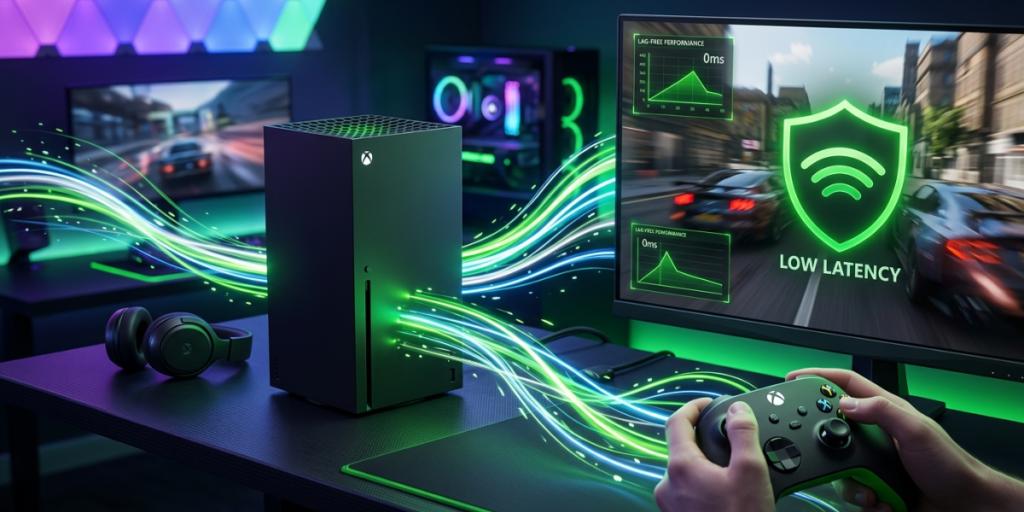
In fast-paced games, a fraction of a second decides whether you land the shot or eat the respawn screen. That delay between pressing a button and seeing the result on screen is input lag—and on console, it adds up across your controller, your Xbox, and your display.
The good news: the Xbox Series X was engineered with latency in mind, and a handful of correct settings can shave off meaningful milliseconds. This guide shows you exactly how to optimize Xbox Series X for low latency gaming, from console settings and HDMI 2.1 features to display tuning and wired controllers.
Key Takeaways
- Enable Game Mode on your TV (or let ALLM do it automatically) to cut display input lag fastest.
- Use HDMI 2.1 to unlock 4K at 120Hz, which halves frame transmission time versus 60Hz.
- Turn on Variable Refresh Rate (VRR) to remove tearing and show frames with the lowest possible latency.
- Go wired with your controller for the most precise, instantaneous input.
- Match every link in the chain—console, cable, and display must all support the same standard.
Latency is the time it takes a signal to travel from one point to another—measured in milliseconds. For gaming, the chain runs from your controller to the console, then from the console out to your display.
Microsoft rebuilt this entire pipeline for the Series X. According to the Xbox engineering breakdown of Series X latency, the team added a feature called Dynamic Latency Input (DLI) so the controller delivers your input “just in time,” right before the game asks for it. The console’s input stack was also redesigned so games receive and access input faster.
That means your hardware already has a head start. Your job is to make sure your settings and display don’t throw those gains away.
Mini takeaway: Most latency you can control lives in your display settings and connection—so that’s where to focus.
Your TV processes every image before showing it—adjusting color, sharpness, and motion. That processing adds delay. Game Mode strips out the heavy work to display frames as quickly as possible.
According to RTINGS’ input lag testing, Game Mode “is the most important setting to ensure you get the lowest input lag possible.” The difference between Game Mode on and off can be dramatic—often dropping lag from a sluggish 40ms+ down to single or low double digits.
Mini takeaway: No single change reduces input lag more than enabling Game Mode.
Auto Low Latency Mode (ALLM) is the smarter, hands-off version of Game Mode. When you launch a game, the Xbox Series X signals a compatible display to switch into its lowest-latency mode automatically—then switch back for movies.
As the Xbox engineering team explains, “Xbox Series X invokes Automatic Low Latency Mode (ALLM) on capable TVs to automatically enable Game Mode, removing any work previously required of gamers.”
Mini takeaway: With ALLM on, you get low latency in games without fiddling with TV menus every session.
The cable matters more than most people think. The Xbox Series X has a single HDMI 2.1 port, and that standard is what unlocks its best low-latency features.
Per the Xbox latency breakdown, HDMI 2.1 “supports up to 4K at 120Hz which allowed the team to reduce frame transmission time from 16.6ms to 8.3ms.” That’s an automatic ~8.3ms improvement at all frame rates on a capable display. Every Series X ships with an Ultra High Speed HDMI cable to guarantee that bandwidth.
Mini takeaway: The right cable in the right port is a free latency win—don’t skip it.
Higher refresh rates and adaptive sync are two of the biggest levers for responsiveness on the Series X.
The official Xbox Series X page confirms gameplay at up to 120 FPS. By decoupling rendering and input pipelines, the console supports 120 FPS, and the engineering team notes this “halves their internal latency” compared to 60 FPS.
Variable Refresh Rate syncs the display to the console’s output. As Xbox explains, “When games miss their frames, VRR will show the result with the lowest possible latency”—and it eliminates screen tearing above 40 FPS on capable displays. The Series X supports HDMI VRR and AMD FreeSync.
Mini takeaway: 120Hz plus VRR delivers both smoother frames and lower, more consistent latency.
Wireless is convenient, but wired is faster. The Xbox engineering team built the wired path as “the ultimate solution: as soon as a digital state changes, the data gets transmitted.”
Mini takeaway: For ranked or reaction-heavy play, a wired controller removes one more source of delay.
Beyond Game Mode, a few display habits keep latency low and consistent.
Mini takeaway: Turn off “enhancements” and lean on a true gaming display for the cleanest input path.
Setting | What It Reduces | Priority | Where to Enable |
|---|---|---|---|
Game Mode / ALLM | Display processing lag | Highest | TV + Xbox Video modes |
HDMI 2.1 + 120Hz | Frame transmission time | High | Cable, port, Xbox refresh rate |
Variable Refresh Rate | Tearing + frame timing lag | High | Xbox + display input |
Wired controller | Input transmission delay | Medium | USB connection |
Disable interpolation | Added processing lag | Medium | TV picture settings |
Use this to prioritize: Game Mode and ALLM first, then connection and refresh rate, then controller and display cleanup.
Even careful setups trip over these:
Mini takeaway: Most “my settings won’t enable” problems come down to firmware or the wrong port.
Run through this once and your Series X will be tuned for the lowest latency your hardware allows.
Start by enabling Game Mode or Auto Low Latency Mode on your display, since display processing is usually the biggest source of lag. Then connect with an HDMI 2.1 cable, turn on 120Hz and Variable Refresh Rate in the Xbox Video modes menu, and use a wired controller for the fastest input.
HDMI 2.1 unlocks the console’s best low-latency features, including 4K at 120Hz, which cuts frame transmission time roughly in half compared to 60Hz. The Series X includes an Ultra High Speed HDMI cable for this reason. You can still game on HDMI 2.0, but you’ll miss 120Hz and the latency gains it brings.
Yes. VRR syncs your display to the console’s frame output, so when a game misses a frame, the result still appears with the lowest possible latency and without screen tearing. The Xbox Series X supports both HDMI VRR and AMD FreeSync—enable it on the console and on your display’s input.
A wired connection is the fastest option because the controller transmits digital state changes the instant they happen. Wireless is excellent thanks to Dynamic Latency Input, but for competitive or reaction-heavy games, wiring your controller removes one more small source of delay.
Lowering latency on the Xbox Series X isn’t about expensive upgrades—it’s about getting a handful of settings right. Enable Game Mode and ALLM first, connect through HDMI 2.1, switch on 120Hz and VRR, and go wired when every millisecond counts.
Your next step is simple: open Settings → General → TV & display options → Video modes, enable ALLM, VRR, and 120Hz, then confirm Game Mode on your display. Update any outdated firmware, plug into the right HDMI 2.1 port, and you’ll feel a snappier, more responsive game the next time you play.
Powered by Digital AI Tips – All rights reserved.